
This guide explains how the Store Name Directory works in InkSoft and how it can help customers find and access your online stores more easily. It covers how store names are displayed, where they appear within the platform, and best practices for naming stores, helping you create a clear and organized experience for both store administrators and shoppers.
Give your store an official name, as well as a store ID that will be used in the web address (URL)!
Access the Name & Directory setting by heading to Store Admin > Store Settings > Name & Directory.
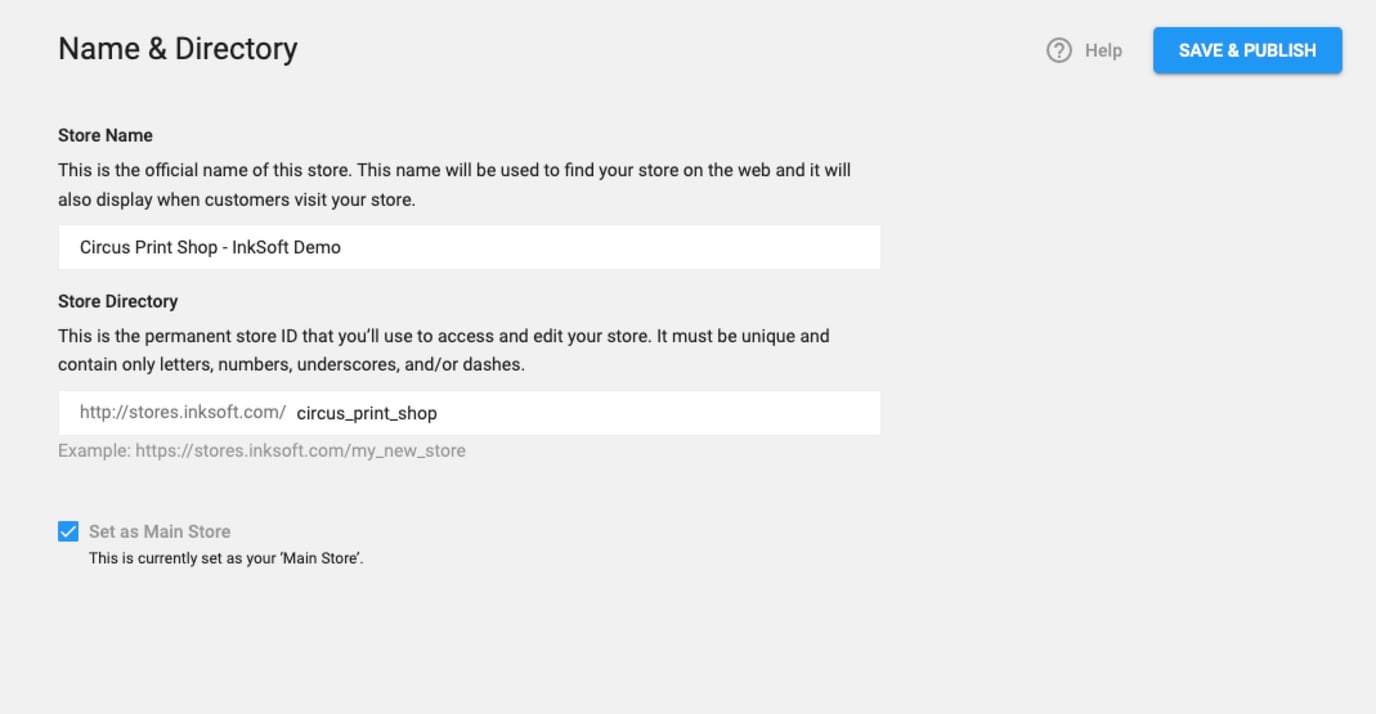
Store Name
Enter the desired store name here. This is what customers will see. This name will also be used in reports, receipts, work orders etc. Short and clear works best here!
Store Directory
This is also known as the store URI, or store identifier. This is the permanent store ID that you’ll use to access and edit your store. It must be unique and contain only letters, numbers, underscores, and/or dashes. This store ID will show in the site's URL.
Set as Main Store
You can check this box to set this as your primary store within your account. New products added from the Supplier Catalogs will automatically be assigned to your Main Store, and if you use a custom domain, the domain that is applied to your Main Store will automatically apply to your other Stores.
Example: If the domain customstore.com is assigned to the main store, any other stores you build on your account will automatically use this directory name: customstore.com/additionalstorename. To read more about the Main Store setting, click here!
Comments
0 comments
Article is closed for comments.