
This guide explains how the Request a Quote feature works in InkSoft, making it easy for customers to inquire about custom products or services before placing an order. It covers how quote requests are submitted, what information is collected, and how merchants can review and respond to inquiries, helping streamline communication and simplify the custom ordering process.
Request a Quote can give you and your business lead generation opportunities on every store. You’re in control of what your potential clients are required to submit, that way you get only the data you need.
Perfect for special order requests, upcoming fundraiser events, etc.
Add Component
- Click Style Editor
- Click the Blue +Store Components button on the bottom right
- Select the Request a Quote Component
NOTE:You have 2 Layouts to choose from.
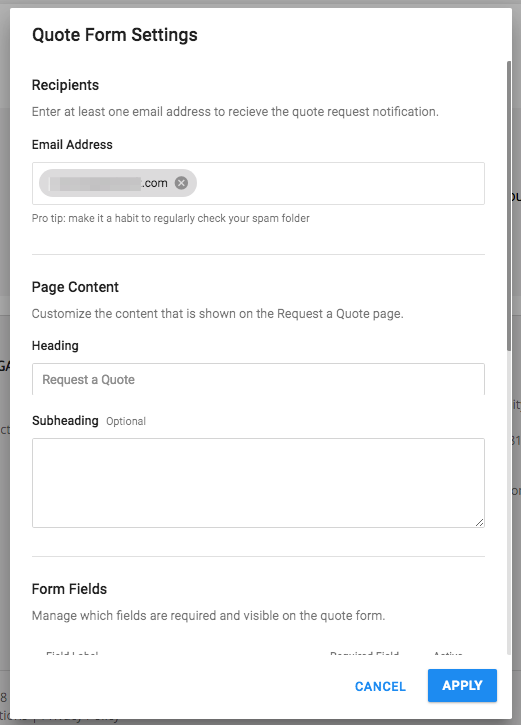
Quote Form Settings
Recipients
- Email Address (At least one email is required) - This will allow you to obtain the quote request!
Page Content
Customize the Heading and Subheading that will be shown to your shopper.
- Heading
- Subheading(Optional)
Form Fields
Manage the data you are looking to obtain from your shoppers. You have options to make certain fields Required and/or Active.
- Name (Required)
- Email (Required)
- Phone
- Tell us about your project
- How many items do you need?
- When do you need it?
- What is your budget?
- Number of Print Colors
- Upload Art
Success Message
Customize the messaging your shopper will see once they submit their request.
NOTE: Max Characters = 225
- ClickAdd Component
Edit Component
Click Edit to manipulate the look and feel of the component
(This will slide out on the left of your screen.)
Manage Form
Clicking Manage Form will open you back up to update any of the criteria that you already entered.
What to Expect When a Quote is Submitted:
When a customer submits information via the Request a Quote form, you will receive an email with the information to the email address supplied in the Recipients section (pictured above). If a customer submitted an art file, there will be a section at the bottom of the email with a button labeled Download Art, where you can access the art the customer provided.
Comments
0 comments
Article is closed for comments.